The short answer
A finished project needs an access closeout
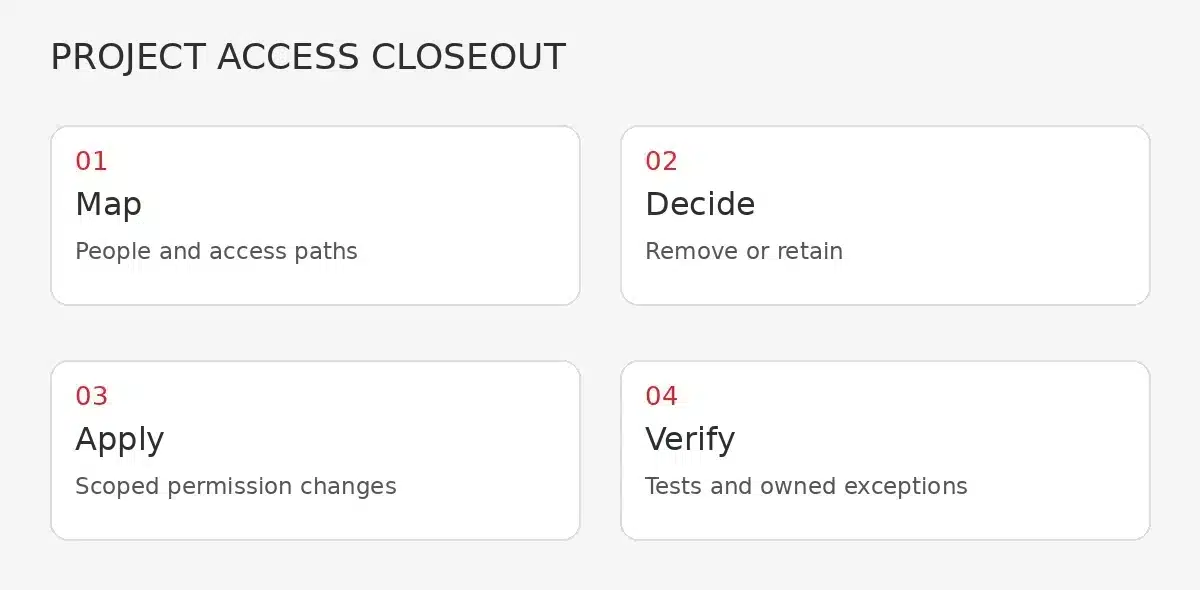
A SharePoint guest access review should end with a decision for each external person and each sharing path: remove it, retain it for a documented reason, or investigate it before closure. Marking a project complete does not, by itself, remove SharePoint permissions or make every previously issued link stop working.
Check whether each guest can still reach the project's site, folders or files and whether that access remains justified. Links, direct permissions and group membership can grant different routes to the same material. Microsoft distinguishes these sharing arrangements in its external-sharing and permission guidance. [5] [6] [7]
Use the project's acceptance or handover date to trigger a review. Agree a named business owner, a short list of permitted exceptions and a verification step with IT.
Define the boundary
Start with the project rather than the whole tenant
Identify the actual project site and the information that was shared outside the business. Record the site URL, connected Team if there is one, project owner and any folders or files shared separately. A document can be part of the project even when it was shared from a different location, so ask the people who worked with the supplier where collaboration happened.
Keep the review bounded. Removing a supplier's guest identity from the entire organisation may affect another active project. Conversely, removing that person from one project group is not proof that their separate file links have disappeared. The right action depends on the access paths and the remaining business need.
Agree what closed means for this project. Does the customer need a final read-only handover period? Does an external accountant still need a particular record? Is there an unresolved defects period? These are exceptions to document and approve, not reasons to leave the whole site open indefinitely.
For each exception, record the person, exact resource, permitted activity, reason, owner and next review date.
Find the routes
Check more than the guest list
Microsoft's sharing model includes site and group permissions as well as file and folder links. Review the routes below together. For Teams-connected work, involve the person who manages the connected Microsoft 365 group and Team. [5] [6]
Site and group membership
Check external members of the project site and its connected group or Team. Record which membership grants access and who is authorised to remove it without disrupting other work.
Direct permissions
Use the relevant access-management view to check people granted access directly to a file or folder. Confirm whether permissions are inherited from a parent location before deciding where to change them.
Specific-person links
Review links issued to named recipients. Remove or adjust the link or recipient as appropriate, then check for another route that still grants the same person access.
Anyone links
Treat anonymous links separately from named guests. These links can be used without authenticating as a guest, so reviewing guest identities alone cannot establish whether the content remains accessible.
Sharing settings
Use restrictions without confusing them with removal
SharePoint has organisation-level and site-level external-sharing settings. A site's setting cannot be more permissive than the organisation's setting. Connected services and group settings also matter, so a project owner should not change a tenant-wide control merely to close one project. Ask the administrator to identify the appropriate scope. [5]
A setting that allows only existing guests is not a clean-up of existing guest access. Likewise, disabling external sharing is not necessarily the same as permanently removing the permissions underneath it. Microsoft warns that when external sharing is turned off and then back on, guests can regain access they previously had. Record whether the change is a temporary restriction or actual permission removal. [5]
Guest-access expiry can support a review process when it is configured appropriately. Administrators should check the expiry settings and exceptions against the project finish date. Review anonymous-link expiry separately from named-guest access. [5]
Assign an administrator to carry out the approved changes by the project deadline and record the result.
Closeout worksheet
Leave a decision trail someone else can follow
Use one row per person and resource, or per sharing link where that is the meaningful unit. The review can be a small controlled spreadsheet or a task record. Include enough detail for another authorised administrator to understand what changed.
- Project and resource - record the project name, site URL and the specific folder or file where access differs from the site.
- Person or link - identify the external recipient or sharing-link type without distributing a live anonymous link unnecessarily.
- Access route - note group membership, site permission, direct access, specific-person link or Anyone link.
- Business decision - remove, retain temporarily or investigate; name the approver and the reason.
- Exception and expiry - record the minimum access needed, review date and accountable owner for anything retained.
- Execution and test - record who made the approved change, when it was applied, what was checked and any unresolved access route.
Keep the record where the business can find it at the next review. Do not paste confidential file contents or authentication details into it.
Consider a fictional example. A design consultancy finishes a fit-out project, but a contractor needs access to the final drawing pack during a short defects period. The project owner approves access only to that handover location, names an internal owner and sets a review date. The wider working folders do not remain open just because one limited exception exists.
Make the change
Remove the relevant permission and check for another path
Microsoft's access-management guidance distinguishes removing direct access from deleting or changing a sharing link. It also notes that permissions may be inherited from a parent folder or site. Use the control that corresponds to the actual access route. Deleting one link does not prove that a separate group membership no longer grants access. [7]
Before changing inherited permissions, consider who else relies on them. A broad parent-level change can affect internal staff and other collaborators. For a complex site, have the administrator plan the smallest change that satisfies the approved project decision instead of breaking inheritance casually across many files.
Check retained access as carefully as removed access. A customer who should receive the final pack must still be able to use the agreed handover path.
Permission changes govern access to the service; they do not recall copies somebody already downloaded, printed or otherwise retained. Handle any return, deletion or continuing confidentiality requirements through the applicable agreement and business process.
Verify the result
Close the project only after the exceptions have owners
Ask IT to re-check effective permissions and the known sharing routes after the changes. Where a controlled test is appropriate, use an authorised test identity or an agreed test with the external recipient; do not request their password. Record what the test actually demonstrates and any areas it cannot prove.
Review the final exception list with the business owner. Every retained permission should have a resource, reason, owner and next review date. An unidentified guest, unexplained link or inherited permission nobody understands belongs in an open action, not in a completed checklist.
The same discipline helps at project start. Name the site owner, prefer an appropriate named-recipient arrangement for external collaboration, and decide the access review trigger while the project is still active. That makes the end-of-project review a short reconciliation rather than an investigation into years of unexplained sharing.
Record which project access was removed, what remains and who owns the next review. Track wider findings separately.
FAQ
Common questions about project guest access
Does deleting a sharing link remove all access
Not necessarily. Someone may still have access through site or group membership, a direct permission or another link. Review the relevant routes together and verify the result rather than treating one deleted link as complete removal.
Does a guest expiry setting follow our project end date
Do not assume so. Expiry depends on the configured controls and their scope. Use the project end date to trigger an approved review, then check the actual settings and any exceptions with your administrator.
Should we delete the supplier's guest account entirely
Only after checking the wider business impact and obtaining the appropriate approval. The same person may still need access to another project. Close the required project access without silently disrupting unrelated work.
Can we retrieve files a guest already downloaded
Removing SharePoint access does not recall files already downloaded or printed. Handle return, deletion and continuing confidentiality requirements through the relevant agreement and business process.
Sources
Microsoft guidance and service scope
Sources checked 25 October 2026.
- [4] Microsoft 365 Support Sydney | Administration & Security | Milnsbridge
- [5] Manage sharing settings for SharePoint and OneDrive in Microsoft 365 - SharePoint in Microsoft 365 | Microsoft Learn
- [6] Overview of external sharing in SharePoint and OneDrive in Microsoft 365 - SharePoint in Microsoft 365 | Microsoft Learn
- [7] Manage sharing and permissions in OneDrive and SharePoint | Microsoft Support
Explore More
Related support and practical guidance
Microsoft 365 management
Administration, shared mailboxes and permissions.
Managed IT services
Ongoing support for your business systems.
Retention and recovery
Understand the difference between keeping and recovering data.
Business email security
Explore protection for everyday business email.
Next step
Give project access a clear finish line
Milnsbridge's Microsoft 365 management includes permissions and Teams governance. We can help turn your project owner's decisions into a scoped access review, with named exceptions and verification. Contact us to confirm the work required for your sites and collaboration arrangements.