The short answer
Keep the records without keeping the login
When an employee leaves, the business mailbox decision has two separate parts: stop the person's access, then decide how authorised staff will handle the business records and incoming messages. Keeping the old password alive is not a handover plan. Nor is deleting the account before anyone has checked what the business still needs.
For Microsoft 365, converting an eligible user mailbox to a shared mailbox can preserve its email and calendar while nominated colleagues use their own accounts to work with it. Microsoft says the associated account must remain because it anchors the shared mailbox. Conversion is not, by itself, a substitute for blocking direct sign-in. [1] [3]
The right outcome depends on the role. A sales mailbox might need a short transition for active enquiries. A former director's records might need a restricted preservation process rather than routine access by the replacement. Decide the purpose, approver and review date before asking IT to change anything.
Business ownership
Name the decision maker before the last day
Ask the employee's manager to identify open customer matters, supplier commitments, recurring invoices and appointments that need a new owner. The point is not to give everybody the entire mailbox. It is to work out which business tasks must continue and who is allowed to perform them.
Keep the request specific. Record the departing person's account, departure time, business approver, nominated reader, person authorised to reply, and review date. Flag sensitive material for the appropriate HR, privacy or legal adviser. An IT administrator can implement an approved access decision; they should not invent the business justification for reading somebody's correspondence.
Do not assume all important records live in email. OneDrive files, Teams ownership, shared folders, application accounts and mobile devices need their own handover decisions. Keep those on the broader offboarding checklist so that a successful mailbox conversion is not mistaken for a completed departure.
A useful approval says what access is needed and when it ends. 'Give the replacement everything' does neither. If a dispute, investigation or preservation requirement applies, pause destructive changes and obtain appropriate advice before setting a deletion date.
Choose the outcome
Match the mailbox arrangement to the work
Confirm the current mailbox settings and any retention or hold requirements with your Microsoft 365 administrator before making changes.
Active correspondence
If customers still write to the address, nominate a person to monitor it and agree how replies will identify the new contact. A shared mailbox may suit a controlled transition.
Records only
If nobody needs to send or receive through the old address, define the records that must be preserved, who may retrieve them and the approved retention arrangement. Do not grant broad everyday access just in case.
Role continues
If the address represents a job rather than a person, consider a role-based shared mailbox for future correspondence. Give each authorised colleague individual access instead of circulating a common password.
No continuing need
Once the business owner confirms that correspondence, preservation and related services are covered, ask IT to implement the approved closure process. Do not infer that removing a licence is the same as completing that process.
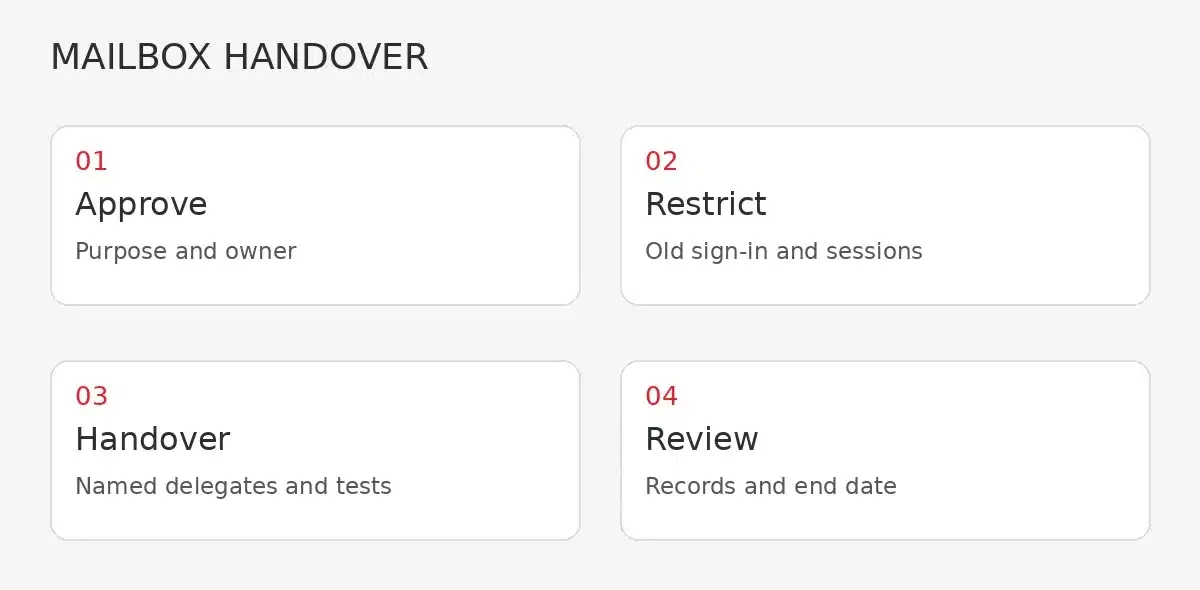
Access comes first
Close the old access path and test the new one
Coordinate the departure time with IT. Microsoft's former-employee guidance covers resetting credentials, signing out sessions and blocking access. These controls have different timing and scope; do not promise that one click instantly terminates every existing session. Your administrator should verify the relevant controls and any connected applications. [2]
A shared mailbox should not be used through its own username and password. Authorised staff access it through their individual, licensed Exchange Online mailboxes. That lets the business remove one delegate later without issuing another shared password to everyone. [3]
Treat permission to read and manage the mailbox separately from permission to send. Full Access, Send As and Send on Behalf serve different purposes. Agree which sending identity is appropriate, then test a controlled message so the manager can see how the sender appears. Do not discover the difference in a reply to a client complaint.
Check the settings carried into the handover. Microsoft notes that inbox rules are preserved during conversion. Review forwarding, rules, automatic replies and delegates rather than assuming the converted mailbox is a clean slate. Unexpected forwarding or a rule that files customer enquiries out of sight can undermine an otherwise tidy transition. [1]
Licence checks
Convert before removing the wrong licence
Microsoft's conversion instructions say the user mailbox needs a licence before conversion. After conversion, a shared mailbox holding up to 50 GB can operate without its own licence when it does not need separately licensed features. The people accessing it still need licensed Exchange Online mailboxes. [1] [3]
That is not a blanket instruction to remove every former employee's licence. Larger shared mailboxes, archiving, holds and certain advanced features have additional licensing requirements. Check actual size, archive configuration and preservation requirements against Microsoft's current guidance before changing the subscription. [1] [3]
Do not delete the associated user account as a tidying step after conversion. Microsoft explicitly says that account anchors the shared mailbox. Block direct sign-in and manage delegated access instead. Record the approved licence decision in the ticket so that a later billing review does not accidentally undo the arrangement. [1]
Retention and recovery are also separate decisions. A mailbox that colleagues can still open is not proof that all records are preserved against every kind of loss. Our existing Microsoft 365 retention and backup guide explains that distinction; this handover should reference the business's agreed preservation arrangements rather than silently replace them.
Handover worksheet
Record what the next person must actually do
Use one handover record that both the manager and IT can understand. Keep passwords and message contents out of that record. It needs decisions and evidence of completion, not a copy of the employee's correspondence.
- Business purpose and approver - identify why continued access is necessary and who approved it.
- Mailbox and access - record the address, conversion outcome, sign-in restriction and individually named delegates.
- Correspondence owner - nominate who checks incoming mail, how often during the transition and who covers their absence.
- Reply identity - confirm whether staff send as the mailbox, on its behalf or from their own address, with an appropriate handover message.
- Records and licences - record the checked mailbox size, archive or hold requirements, licence decision and associated-account preservation.
- Verification and closure - record the test results, review date, exception owner and the person authorised to end the arrangement.
For example, imagine a fictional project coordinator leaving during a customer fit-out. The manager names a colleague to handle outstanding supplier questions, approves a temporary shared-mailbox arrangement and sets a review after final handover. That is more useful than keeping the old login indefinitely, because the ongoing business task and the person accountable for it are both clear.
At review, ask whether people are still sending useful mail to the address and whether the transition work is complete. Extend access only for a documented reason. Ending routine access and disposing of retained records are different decisions; each must follow the business's requirements.
Verification
Check the handover rather than just closing the ticket
Ask the nominated delegate to open the mailbox through their own account and locate an agreed, non-sensitive test item. Check that the required calendar information is available and that the approved sending permission behaves as expected. If incoming mail is meant to continue, send a controlled test from an appropriate external address and confirm who received and handled it.
Record the access-control checks performed by IT without asking anyone to share passwords. Review approved rules and forwarding destinations. Confirm that the manager understands what has not been transferred, including separate files or applications still awaiting action.
A mailbox can appear to work while the handover remains incomplete. An unread queue, an absent delegate or a misleading automatic reply is a business failure even when the technical conversion succeeded. Leave the ticket open for those exceptions, assign an owner and agree a specific next step.
FAQ
Common questions about mailbox handovers
Does converting a mailbox stop the former employee signing in
Do not rely on conversion alone. Microsoft's guidance separates mailbox conversion from credential and access controls. IT should block direct sign-in, address existing sessions and verify the offboarding controls appropriate to the account.
Can we remove the licence after conversion
Sometimes. A shared mailbox up to 50 GB can operate without its own licence if separately licensed features are not required. Larger mailboxes, archives, holds and advanced features need individual checks. The delegates still need licensed Exchange Online mailboxes.
Should we delete the old user account
Not when it anchors the converted shared mailbox. Microsoft says to keep the associated account. Restrict direct sign-in and manage authorised delegates instead; agree any eventual closure separately.
Is mailbox access the same as preserving business records
No. Access allows authorised people to work with the mailbox. Retention, holds, recovery and eventual disposal have separate requirements. Confirm those arrangements before making licence or deletion changes.
Sources
Microsoft guidance and service scope
Sources checked 25 October 2026.
- [1] Convert a user mailbox to a shared mailbox - Microsoft 365 admin | Microsoft Learn
- [2] Step 1 - Prevent user sign-in and block access to Microsoft 365 - Microsoft 365 admin | Microsoft Learn
- [3] About shared mailboxes in Microsoft 365 - Microsoft 365 admin | Microsoft Learn
- [4] Microsoft 365 Support Sydney | Administration & Security | Milnsbridge
Explore More
Related support and practical guidance
Microsoft 365 management
Administration, shared mailboxes and permissions.
Managed IT services
Ongoing support for your business systems.
Retention and recovery
Understand the difference between keeping and recovering data.
Business email security
Explore protection for everyday business email.
Next step
Make the next departure a planned handover
Milnsbridge's Microsoft 365 management covers offboarding, shared mailboxes and permissions. Bring the business decisions and timing; we can help translate them into an accountable technical handover. Ask us to confirm the required scope and any licensing changes before work starts.