THE SHORT ANSWER
The short answer
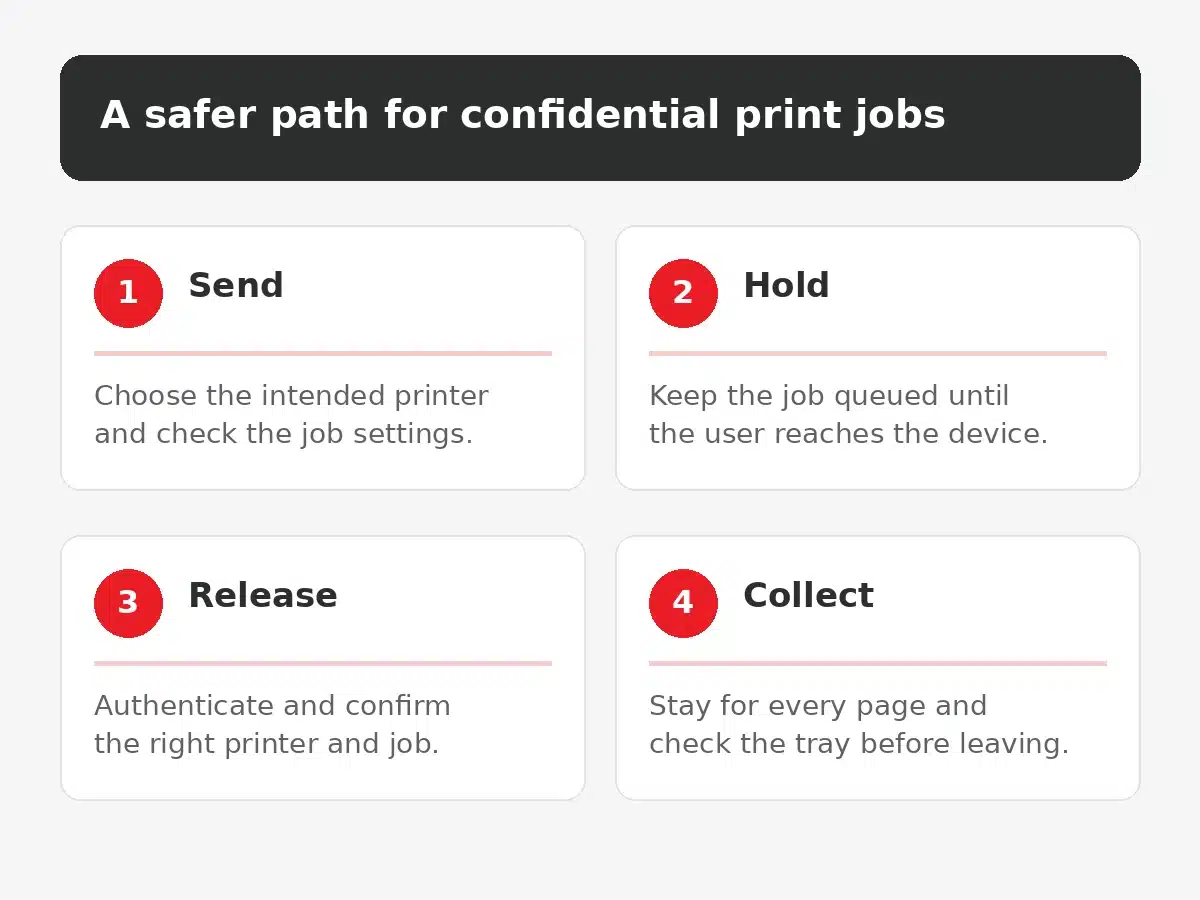
Secure printing for a small business means confidential jobs do not print until the authorised user is standing at the right device and deliberately releases them. That can be done with a supported PIN, staff badge or authenticated release method, depending on the printer and print platform.
Start with the documents that would cause the most harm or embarrassment if collected by the wrong person. Payroll reports, employment records, client documents, legal correspondence, health information and board papers are sensible candidates. Then check whether the current printers can hold and release jobs reliably, place devices where collection can be observed, and give staff a clear process for abandoned pages and faults.
PRACTICAL GUIDANCE
Why the output tray is part of information handling
Printing turns controlled digital information into paper that can be seen, moved or taken without the access checks applied to the original file. A document sent to a shared printer may sit in the output tray while its owner joins a meeting, works from another floor or forgets the job entirely. Someone else may collect it with their own pages or read it while looking for their document.
This is not only a technology problem. Printer placement, staff habits, visitor access, job naming, physical records handling and device configuration all affect the result. Moving a printer away from a public corridor may reduce casual exposure, but it does not stop an employee picking up another person's pages. A release-printing feature may hold jobs, but it will not help if staff share release codes or walk away without checking the tray.
The Office of the Australian Information Commissioner explains that the Australian Privacy Principles govern covered organisations' handling of personal information, including governance, accountability and information integrity.[3] Whether or not a particular business is covered by the Privacy Act, treating printed personal information as controlled business information is a practical baseline.
PRACTICAL GUIDANCE
Decide which jobs need release printing
Not every page carries the same risk. A blanket policy can create unnecessary friction and encourage workarounds, while a narrow policy can leave the most sensitive jobs exposed. Map the common document types, the people who print them and the devices they use.
Use four questions for each workflow.
- What information appears on the page and who is allowed to see it?
- Where does the job print and who can reach that area?
- How long could the pages remain before collection?
- What would staff do if the document printed at the wrong device or was missing?
A payroll team using a shared device near a kitchen has a different exposure from a warehouse printing delivery labels in a controlled dispatch area. A legal practice may need secure release for client correspondence and matter records, while allowing immediate printing for blank internal forms. A medical or allied-health office may need tighter handling wherever patient information appears.
Create a short list of high-priority workflows rather than relying on labels such as confidential to solve the problem. Record the document owner, normal printer, release method, fallback route and disposal process. This gives IT support and business owners something concrete to configure and test.
PRACTICAL GUIDANCE
Choose a release method that staff can use
Release printing holds a job until the user proves they are at the device and chooses to print it. The available options depend on the printer, driver, print server and cloud service.
PIN release
The user enters a code at the printer. It can suit a small office with compatible hardware and a modest number of sensitive jobs. Avoid shared team PINs because they remove individual accountability. Check how codes are created, whether they can be guessed, how forgotten codes are handled and whether the printer deletes expired jobs.
Badge release
The user taps an assigned staff badge. This can be convenient where badges are already managed and the printer platform supports the integration. Lost badges, shared badges and leavers must feed into the same access-removal process used for doors and business systems.
Authenticated app or QR release
Microsoft Universal Print can hold jobs at the printer share until secure release. Microsoft documents QR code release through a browser-based Universal Print portal, where the user signs in with the same work account used to submit the job and confirms the intended printer.[1] The device and browser still need to satisfy the organisation's sign-in and Conditional Access requirements, so a personal phone will not always be suitable.[1]
Microsoft also notes that release behaviour is controlled at the printer-share level. A share can hold jobs for secure release, while a different share for the same physical printer can allow immediate printing.[2] That flexibility is useful, but printer names and staff instructions must make the difference obvious.
Do not select a method from a feature list alone. Test it with the actual devices, work accounts, browser profiles, badges and network conditions staff will use. Include people who print occasionally, not only the administrator who configured it.
PRACTICAL GUIDANCE
Put printers in a safer place
Release controls work better when the physical layout supports them. Place shared printers where staff can collect pages without crossing a reception queue, visitor path or communal area. Avoid locations where output trays face meeting rooms, building corridors or external contractors' work areas.
A safer location should still be practical. If the printer is so far away that staff batch jobs, send the same file twice or ask a colleague to collect pages, the process may create new errors. Consider noise, accessibility, power, ventilation, network connectivity and the movement of paper supplies as well as confidentiality.
Check these details during a walk-through.
- Can a visitor reach the device without being challenged?
- Can someone standing nearby read pages as they emerge?
- Is there enough light and space to check that every page was collected?
- Are recycling and secure-disposal bins clearly different?
- Can staff with mobility or vision needs use the release method and controls?
- Does the device display document names or usernames where others can see them?
Where a device serves several teams, give it a location-based name that matches the sign on the printer. Microsoft recommends keeping printer name and location details current so users can confirm the intended device during Universal Print release.[1]
PRACTICAL GUIDANCE
Test the complete printing path
A successful test is more than seeing one page emerge. It should show that the right person can submit, identify, release, collect and account for a job without exposing it to someone else.
Run a controlled pilot with sample content that looks realistic but contains no real personal, financial, client or employee information. Test from each supported device type and application used for the workflow. Confirm what happens when the user selects the wrong printer, walks away without releasing, loses network access, changes their password or sends the same job twice.
The test should answer these questions.
- Does the job remain held until the correct user releases it?
- Does the release screen show enough information to choose the right job without exposing document content?
- Can another user see or release the job?
- Does the page print only at the selected device?
- What happens to a held job that is never released?
- Can IT identify a failed job without reading the document?
- Do duplex, colour, finishing and page-count settings remain correct?
Record the printer, share, release method, user type, application, result and any corrective action. Retest after driver, firmware, identity, print-platform or network changes that could affect the workflow. A feature that worked during installation is not proof that the full process still works months later.
PRACTICAL GUIDANCE
Give staff a simple collection rule
The everyday process should be short enough to remember.
- Check the selected printer before submitting the job.
- Go to that printer before releasing confidential pages.
- Confirm the printer name and job details at release.
- Stay until the full job has printed.
- Check the tray and surrounding area before leaving.
- Report missing, duplicate, damaged or unexpected pages immediately.
Staff should not ask another person to release a confidential job under their account. They should not leave pages on top of the device for later collection or place abandoned documents in an ordinary recycling bin. If a job prints unexpectedly, the user should collect what is present, avoid repeated submissions and contact IT support with the printer name, time, application and job description.
Managers also need a rule for found pages. The person who discovers an abandoned document should not circulate a photograph or send its contents through chat. They should protect the pages from further viewing, notify the named owner or an authorised manager, and use the approved secure-disposal process once ownership and any incident response are clear.
PRACTICAL GUIDANCE
Manage the printer as a business system
A multifunction printer is not just a paper appliance. It may have local storage, address books, scan destinations, administrator accounts, firmware, network services and audit records. Assign an owner for configuration, supplier coordination and lifecycle decisions.
Keep an inventory that identifies the device, location, business owner, support provider, network connection, enabled print and scan functions, administrator access and expected replacement date. Restrict administrative access to authorised people and change default credentials. Review unused protocols and features with the printer vendor or IT support team rather than disabling services by guesswork.
When a printer is replaced, returned or disposed of, confirm what information it may retain and follow the manufacturer's supported sanitisation process. Include stored jobs, internal drives, address books, scan history and any attached storage. Keep evidence of the action where business or regulatory requirements make that necessary.
Release printing also needs access housekeeping. Remove departed users, review badge assignments, retire old printer shares and update instructions when a device moves. If two shares provide immediate and held printing, document who should use each one and why.
Milnsbridge provides managed IT support for Sydney businesses across devices, identity, Microsoft 365 and infrastructure. Printer configuration and hardware capability vary, so the first step is to verify the current environment and decide what belongs in the supported managed scope rather than promise that every device can provide the same controls.
PRACTICAL GUIDANCE
Review failures without blaming the user
An abandoned page may reveal a design problem, not only a careless person. The printer may have been moved, the release prompt may be unclear, a badge reader may be unreliable, or the device may print immediately after a timeout. A practical review looks at the whole path.
Record what was printed, where it appeared, who could have seen it, how long it was exposed and whether the pages were recovered. Preserve necessary evidence without copying the confidential content more widely. The responsible business owner should decide whether privacy, legal, contractual or client-notification advice is needed.
Then correct the cause. That may mean changing the default printer, improving the device name, fixing badge integration, moving the printer, adjusting job expiry, updating staff instructions or expanding secure release to another workflow. Verify the correction with a fresh controlled test.
FAQ
Common questions about secure printing
Is secure printing the same as sending a job to a nearby printer
No. Selecting a nearby device may reduce walking time, but the job can still print immediately and remain unattended. Secure release holds the job until an authorised user deliberately releases it.
Should every print job require a PIN or badge
Not necessarily. Choose controls according to document sensitivity, location and business workflow. High-risk documents and publicly accessible printer areas are sensible priorities, while low-risk operational printing may use a different share or process.
Can staff use a personal phone for QR release
Only where the organisation permits it and the phone and browser satisfy its access policies. Microsoft notes that Universal Print QR release may require a managed or compliant device and an allowed browser profile.[1]
What should we do with pages left in the tray
Protect them from further viewing, notify the owner or an authorised manager, and follow the approved secure-disposal and incident process. Do not photograph or circulate the content unnecessarily.
EXPLORE MORE
Useful next steps
Managed IT services
Practical IT support across devices, identity and infrastructure.
Explore →
Endpoint security
Manage business devices and the controls that protect their data.
Explore →
IT support in Sydney
Get local help with business technology and recurring faults.
Explore →
Choosing an IT provider
Use a clear checklist to compare support ownership and fit.
Explore →
GET IT SUPPORT
Make confidential printing easier to follow
If sensitive documents are reaching shared trays, Milnsbridge can help assess the printers, identity controls, placement and staff workflow, then plan a practical supported release process.
Talk to a Specialist